See what the running windowing system actually knows before changing its configuration.
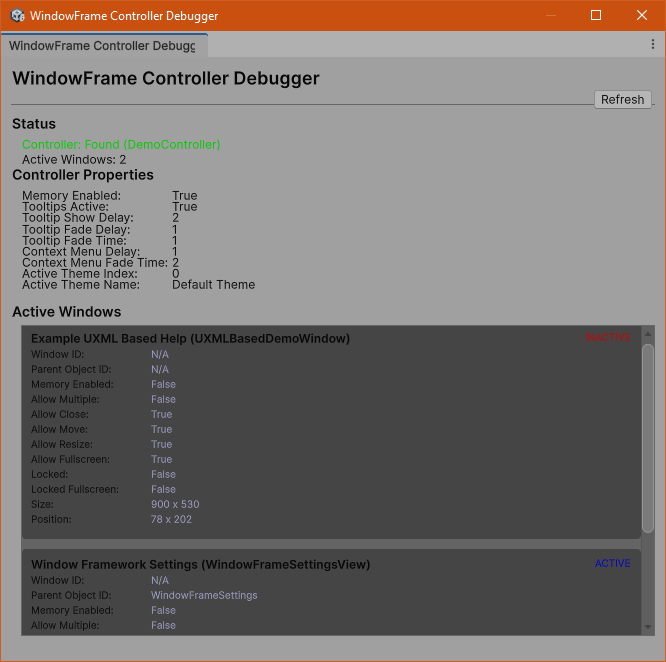
The Controller Debugger is an Editor-only diagnostic window. It shows the current controller singleton, selected built-in/baseline theme, preferences and registered WindowFrame instances. Search the list, inspect a window's state and geometry, and use the existing controller actions when you intentionally want to change something.
It is not a second controller, an end-user theme editor, a profiler, or part of the standalone demo's runtime UI.
Before You Begin
- Complete Installation and Setup and use the existing configured controller/root.
- Enter Play Mode in the Demo or your application to inspect its live registered windows.
- Use inspection and Refresh first. Focus, Close, Reopen Windows, settings actions and preference clearing can change the running application.
- Retain useful Console/preparation/View Issues reports when investigating a problem; the debugger does not replace them.
1. Open the Debugger
Choose Tools > Garage-Ware Games > Window Framework > Controller Debug Window.
The window opens as Controller Debugger. Its mode badge reports PLAY MODE or EDIT MODE, and its controller badge indicates whether the singleton is available.
CONTROLLER NOT FOUND** is a useful state, not proof that the debugger itself is broken. The tool queries WindowFrameController.Instance; an inactive, not-yet-initialized, or absent host is not a live singleton. It does not create a replacement controller or infer one from every object with that component.
2. Refresh and Search
- Auto-Refresh: enabled by default; refreshes diagnostic data at the current 0.5-second interval, approximately two times per second.
- Refresh Now: immediately rebuilds the displayed controller/property/window information.
- Window search: filters title or short class/type name with a case-insensitive substring match.
Turn Auto-Refresh off when you want a stable displayed snapshot while inspecting it, then request another refresh when needed. This does not pause the game or freeze the actual window state.
The window count is the controller's registered collection count, not a count of only search results. No Windows Match Filter means the current filter found none; clear the filter before diagnosing missing registration.
Refresh rebuilds the diagnostic cards. Throttling reduces how often that work happens; it is not a measured zero-allocation or zero-overhead guarantee.
3. Read System Overview and Properties
The current system grid includes:
- Controller Instance: whether the singleton is available.
- Persistence (Memory): the controller's developer-owned MemoryEnabled policy.
- Active Theme: the built-in/baseline display name and collection index.
- Apply Method: the configured Window Frames Only, Parent Panel or All Panels scope.
- Globals Load Order: placement of the controller's optional global stylesheet.
- Tooltips Active, Tooltip Show Delay, and Tooltip Fade Time.
- Context Menu Delay and Context Menu Fade.
- Telemetry Symbol and Telemetry Logging indicators.
Tooltip/menu values are read from their current preference keys with the linked ThemeData defaults as fallback. Those preferences can differ from the author's baseline values. They are displayed here, not edited as a general property grid.
Active Theme refers to the built-in/baseline collection state. It is not a complete imported player-theme catalog or the player's stable identity. For editing/default/active roles see 3. Editing, Active, and Default Are Different; for player identities and issues see Player Themes.
4. Inspect Registered Window Cards
The list uses the controller's ActiveWindowFrames collection. Despite the section's Active Windows name, a card can be INACTIVE: registered instances are not necessarily focused, visible or on-screen.
Each card shows:
- The window title, or an untitled placeholder, and its short type name.
- ACTIVE/INACTIVE, with LOCKED and FULLSCREEN badges where applicable.
- Capability chips for Move, Resize, Close, Lock, Fullscreen, and Multi-Instance.
- Resolved Position (L x T) and Size (W x H).
- Default Size, Min Size, and Start Position.
- Window ID, Parent Object ID, and per-window Memory Enabled.
- Show Header/Footer and Lock Start Position.
Capability chips report the configured properties, not a complete effective-permission evaluation. Locked/fullscreen state, other flags, parent layout and application behavior can still affect interaction.
Resolved geometry needs real layout. Creation-time defaults, minimums and current size are different values; a number in the grid is not necessarily a screen-space/world-coordinate position. Use 4. Choose Size and Starting Position to understand ownership and timing.
Empty IDs appear as N/A. Memory requires eligible concrete application windows and appropriate stable IDs, not just setting a checkbox. The controller and per-window memory policies both matter; see 9. Remember Window Layouts.
Window Actions
- Focus: requests controller activation for the selected instance and refreshes the cards. This changes focus/order, not the application data inside the window.
- Ping: attempts to highlight the associated host in the Unity Hierarchy and can fall back to the controller. It is not a guarantee that a UI Toolkit element has a unique GameObject of its own.
- Close: requests normal CloseWindow for that instance and refreshes the list. It respects normal window policy rather than forcing every window closed. The debugger does not decide whether unsaved business content may be discarded.
Use inspection first, then the action that matches your intention. See 5. Set Window Permissions and 8. Show, Hide, Activate, and Close for actual window policy and cleanup.
5. Use Controller Actions Deliberately
Ping Controller** highlights/selects the singleton's GameObject; when none exists, it reports that instead of creating one.
Open Settings Window** uses the existing framework settings presentation. It is an action on your running UI, not a settings page embedded within the debugger.
Reopen Windows** invokes the existing saved-window reconstruction path. It depends on eligible records, resolvable types and supported construction; it is not a general command to rebuild every custom interface or recover application document data. Review 9. Remember Window Layouts before using it repeatedly.
Apply Tooltips** installs the existing tooltip behavior on eligible framework content. It does not manufacture tooltip text or replace application ownership of dynamically added content. See 1. Add Contextual Help With Tooltips.
Theme Manager** opens/focuses the existing authoring manager. Use that interface for project/theme/default/application-sheet configuration, as described in Theme Studio and Manager and Stylesheet Setup and Theme Structure.
Clear Preferences Is Not a General Repair
Clear Preferences** asks for confirmation, then calls the controller's existing preference-clearing path and refreshes the display. Cancel leaves the operation unrequested.
Use it only when deliberately resetting the relevant WindowFramework preferences. It is not a fix for missing references, invalid player JSON, broken imports, or an unsupported selector. It does not authorize deleting theme assets/player folders or changing controller MemoryEnabled.
Keep evidence of your existing configuration before a reset, and understand which defaults will be used afterward. For diagnosis, start with Troubleshooting rather than clearing state to make a warning disappear.
6. Understand Telemetry Controls
The system grid reports whether the telemetry feature symbol is defined and whether the current controller toggle also indicates logging enabled. The current EMITTING/OFF display uses those conditions; actual output still depends on the instrumented operation and channel configuration.
Enable Telemetry Symbol / Disable Telemetry Symbol** changes the relevant feature define through the existing Editor configuration action. This is a project/build-setting change and can cause recompilation. It is not the Auto-Refresh toggle and is not a switch for all logging in Unity.
The controller's DebugTelemetryEnabled and selected channels govern the supported runtime diagnostic output. Disabled telemetry is not an unconditional guarantee that every API call, argument evaluation or diagnostic cost disappears.
Do not enable unrelated experimental/compatibility symbols to force the asset into an unsupported Unity/package version. This page documents the existing diagnostic feature; it does not change defines or enable telemetry for you.
A Useful Inspection Workflow
- Open the debugger alongside your running existing Demo/application.
- Confirm PLAY MODE and the expected CONNECTED controller badge.
- Check the theme/baseline, apply scope and memory policy before examining individual colors or coordinates.
- Search for the affected title/type and inspect the instance's capabilities, resolved geometry and IDs.
- Compare the state with the configuration described in the relevant guide.
- Use Focus/Ping or another intentional action only when it helps reproduce the specific behavior.
- Preserve the first relevant Console stack or preparation/player issue report if the problem remains.
Do not infer that an empty list means a missing stylesheet, or that a theme mismatch is a window-memory failure. Each diagnostic describes a particular part of the configuration.
What the Debugger Does Not Certify
- It does not show every native UI element, imported player theme, stylesheet declaration, or application permission.
- It does not inspect every saved record when no live controller exists.
- It is not a substitute for profiling; refresh cadence is not a performance measurement.
- A Focus/Close request or a property read is not proof of asynchronous completion or portable visual parity.
- The Editor window is not available in a built player. Runtime settings and player-theme controls are the separate application features.
If the displayed state and documented checks do not explain the problem, collect a focused report using If the Checks Do Not Explain the Problem. Continue to Troubleshooting for symptom-based guidance, or Windows and Layout, Theme Studio and Manager and Player Themes for the owning workflows.
